
Slideator and Synchronized Dual-Stream Video: The Architecture Behind Interactive Presentation Playback
For almost as long as screencasting has existed, the webcam-over-slides format has meant one thing: a small rectangular video of the presenter, permanently burned into a corner of the recording. Once that video is exported, the layout is fixed. If the presenter's face covers an important chart, or a viewer would rather watch full-screen slides without a talking head in the corner, there's nothing to be done about it — the two visual sources were flattened into a single pixel stream the moment recording stopped.
Dual-stream video architecture takes a different approach, and it's quietly becoming the standard for serious e-learning platforms, corporate webinar tools, and screencasting software. Instead of compositing the presenter and the content into one video at record time, the two sources are captured, stored, and delivered as separate, independently addressable tracks — and the decision about how to combine them is deferred all the way to the viewer's own screen.
What Dual-Stream Video Actually Is
At its core, a dual-stream (or "multi-stream") video system captures two things at once during a recording session:
- The content stream — the slide deck, screen share, or whiteboard being presented.
- The presenter stream — a raw, unmodified feed from the presenter's webcam.
These aren't blended together. They're encoded and stored as two distinct files or tracks, tied together only by a shared timeline. During playback, a client-side media player loads both streams and keeps them frame-synchronized — typically using the content stream's playback position as the master clock and continuously correcting any drift in the presenter stream against it.
The result is a video experience that behaves less like a flat video file and more like a small application: the presenter overlay can be shown, hidden, resized, repositioned, or removed entirely, all without needing a different video file or a server-side re-render. Every viewer can configure their own view, and that configuration lives entirely in the browser.
Why This Is a Meaningfully Different Architecture — Not Just a UI Skin
It's worth being precise about why this isn't simply "picture-in-picture with extra buttons." Picture-in-picture, in the traditional screencasting sense, refers to a rendering decision made once, at encode time, that becomes permanent. The presenter's camera position, size, and shape are baked into the pixel data of the output video. Any change to that layout requires re-recording or re-rendering the entire file.
Dual-stream architecture removes that constraint by preserving structural separation all the way to the point of playback:
- Independent encoding — each stream can be recorded at whatever resolution and bitrate suits its content (slides typically need less motion compensation than a face on camera, so they can be encoded very differently).
- Independent lifecycle — a presenter stream can be entirely absent (if the camera was off) without affecting the content stream at all.
- Client-side compositing — the "merge" only ever happens visually, in the DOM or canvas of the viewer's browser, and can be changed at any moment during playback.
- Per-viewer state — one viewer can pin the presenter overlay large and top-left; another can hide it completely; a third can drag it out of the way while reading a dense chart. None of these choices affect the underlying files or other viewers.
This is the same architectural principle behind adaptive bitrate streaming or subtitle tracks — deliver the raw components, and let the final presentation be assembled at the edge, closest to the person actually watching.
How It Works Under the Hood
A practical dual-stream implementation touches three layers of the stack:
Capture. During recording, the browser's Media Recording APIs capture two separate MediaStream objects — one from canvas.captureStream() (the composed slide/whiteboard output) and one directly from the webcam's raw video track. Each is recorded independently, producing two separate encoded files once recording stops (commonly .webm containers using VP8/VP9 or AV1 codecs, given their strong browser-native support for MediaRecorder).
Delivery. Both files are served to the player, along with metadata establishing that they belong to the same session and share a common timeline origin.
Playback synchronization. This is the layer that makes the format actually usable. The player treats one stream as authoritative (usually the content stream, since slide-advance timing and any recorded annotations are keyed to it) and periodically checks the other stream's currentTime against it — typically several times per second — nudging it back into alignment if drift exceeds a small tolerance window (a few hundred milliseconds is a common threshold, since human perception of audio/video sync desyncs is fairly forgiving at that scale but starts to feel "off" beyond it). Play, pause, and seek events on the master stream are mirrored to the secondary stream so both always start and stop together.
The interactive layer sits on top of this: drag handles, resize handles, shape masks (circle, rounded rectangle, freeform), and layout presets are all standard DOM/CSS manipulation of the presenter overlay's container element — they never touch the underlying video decode pipeline, which is what makes the interaction feel instant rather than requiring any kind of re-buffering or re-encoding.
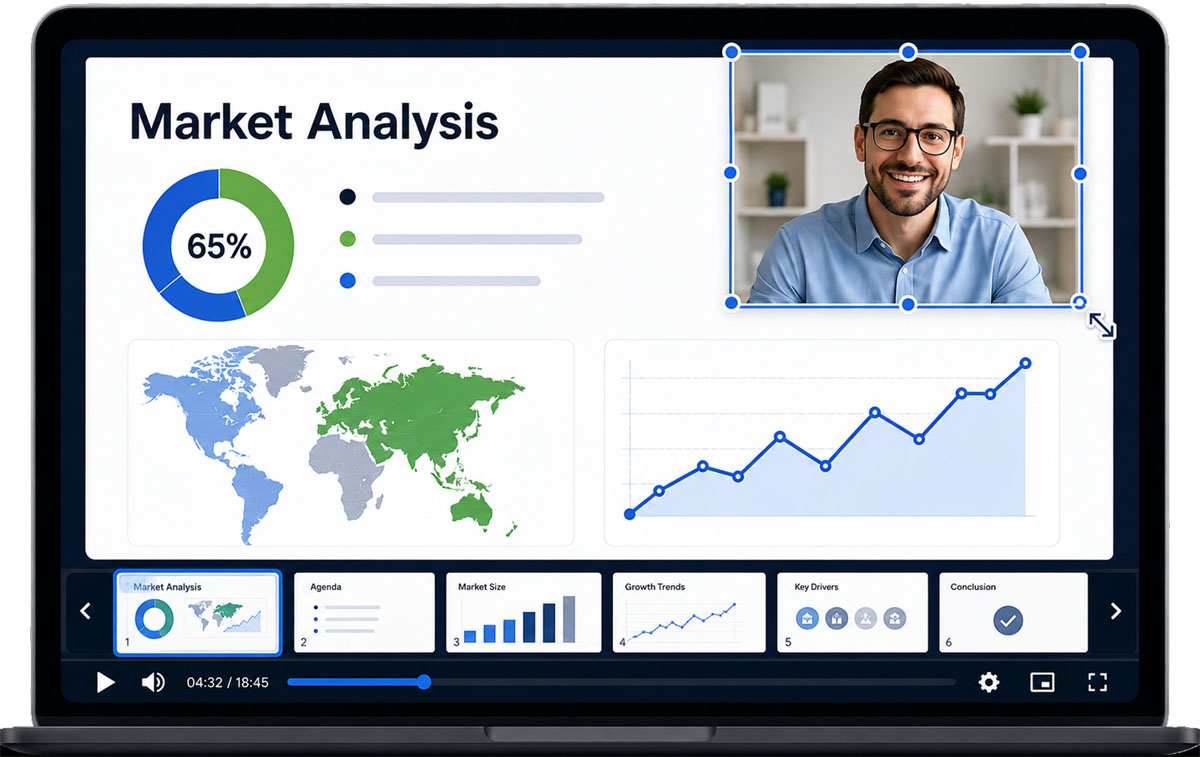
Slideator's Interactive Camera Mode: Dual-Stream in Practice
Slideator's video recorder now offers this architecture directly to every presenter, exposed through a simple choice in Settings, under Camera Layout Mode:
- Classic Mode — the traditional approach. The camera overlay is composited into the recording at the position, size, and shape you set while recording. What you configure is what every viewer sees, permanently.
- Interactive Mode — the presenter's camera is recorded as a fully independent stream alongside the slide video. Viewers get their own floating, draggable, resizable camera window on the watch page — they can move it to any corner, resize it, switch it between circular, square, or rounded-rectangle shapes, or hide it entirely if they'd rather focus purely on the content.
The choice is presenter-controlled and applies per recording session, so a single account might use Classic Mode for a quick screen-recorded tutorial and switch to Interactive Mode for a formal training module where viewer control over the presenter view genuinely adds value — a live Q&A recap, for instance, where some viewers want eye contact with the speaker and others just want the slides.
Behind the Camera Layout Mode toggle, the same architectural principles described above are doing the work: two independently recorded .webm files per session (the composited slide/annotation canvas, and — only when Interactive Mode is active — the raw webcam feed), reunited on the watch page by a synchronization loop that keeps both media elements' currentTime values aligned, with drag/resize/shape controls layered on top as pure client-side interaction that never requires touching the source video files.
Why This Matters for E-Learning and Corporate Video
The case for dual-stream isn't purely technical elegance — it maps directly onto how presentation video actually gets watched:
- Accessibility and attention — some viewers process information better with a visible speaker; others find a talking-head overlay distracting when trying to read a dense slide. Letting each person choose respects both without forcing platform-wide compromise.
- Screen real estate on mobile — a presenter overlay that felt appropriately sized on a laptop can become genuinely obstructive on a phone screen. A resizable, movable overlay adapts to the viewport instead of fighting it.
- Reusability — because the two streams are stored independently, they can, in principle, be recombined into new layouts or exported differently for different distribution channels, without re-recording.
- Lower production overhead for presenters — there's no need to carefully compose the "perfect" camera position before hitting record, since final layout decisions are deferred to playback rather than locked in at capture time.
Looking Ahead
As presentation and e-learning platforms mature, the flat, permanently-composited video is likely to keep giving ground to formats that preserve more structure for longer — much the way plain-text documents gave way to structured, editable formats once the tooling caught up. Dual-stream (and, eventually, multi-stream, incorporating whiteboard annotation layers, audience-reaction overlays, or multiple presenter cameras) is a natural extension of that trend: video not as a single flattened artifact, but as a small set of synchronized, independently addressable layers that the viewer — not just the recorder — gets a say in arranging.
If you want to try it yourself, Interactive Camera Mode is available now in the Slideator recorder under
Settings → Mic & Cam → Camera Layout Mode.